
Skip to content

Software for construction and trades

Between the first site visit and work on-site there are appointments, agreements, and work reports. Someone in the office answers the next customer question while new work comes up on-site. CleverHub keeps inquiries, tasks, and quotes in the CRM. The construction area adds projects, time entries, daily site logs, and time-and-materials reports.

Book a demo
A tradesperson uses a plane on a piece of wood.

What changes in your day-to-day work

Know what’s outstanding before the site visit

A callback may be complete even though a quote is still due. Check the lead to see what the customer needs, and create a task to get missing information. When a site visit is agreed, the office can put it in the calendar.
Record progress on-site

Use the project to associate the work with the correct job site. A daily site log records what happened on a particular day. When someone asks the office for an update, it can refer to the documented progress.

Describe extra work in a time-and-materials report

If extra work comes up on-site, describe it clearly enough for someone else to review. Record it in the dedicated time-and-materials report. The team can share a link so the recipient can check and confirm the report.

How it works

  1. Prepare the inquiry and appointment

    Note what the person needs and how to reach them. Record any question you need to answer before the site visit. Arrange the visit once you know who needs to be there and when they’re available.

  2. Document the work on-site

    Assign the workday to the right project. Record the hours and the details for the daily log. For extra work, write the time-and-materials report in enough detail for the recipient to verify what was done.

  3. Check progress at the office

    Compare the discussion, time spent, and report as a team. Check whether the recipient has confirmed any time-and-materials report. Then decide which details you need for the next conversation or for billing.

Features in detail

Time entries by project

Use time tracking in the construction area to assign work to a job site. Start by deciding who creates and reviews entries. During testing, check that the team selects the right project when moving to another site.

A daily site log for the status of the work

Record what’s been completed and what still needs doing. Use the log to share information between the job site and the office. Review together what a colleague needs to know to carry on the next morning.

Confirm time-and-materials work

Time-and-materials reports have their own confirmation process. Check the recipient and the report before sharing. Once a reply comes in, the person responsible can check the status in the construction area and plan the next action.

Handle quotes and invoices as separate steps

Use the CRM to continue working on an inquiry and prepare a quote. Use the invoicing area to bill for the work. Walk through an example to see who checks the details in the site report and takes them on for each step.

Example workflow for extra work

During an installation, a team discovers that additional work is needed. It describes the scope and effort in the time-and-materials report and records the time spent. The office can later see which project and date the details relate to.

The person responsible checks the report and shares the confirmation link. Once the recipient responds, the office reviews the recorded status and decides how to follow up with the customer about the extra work.

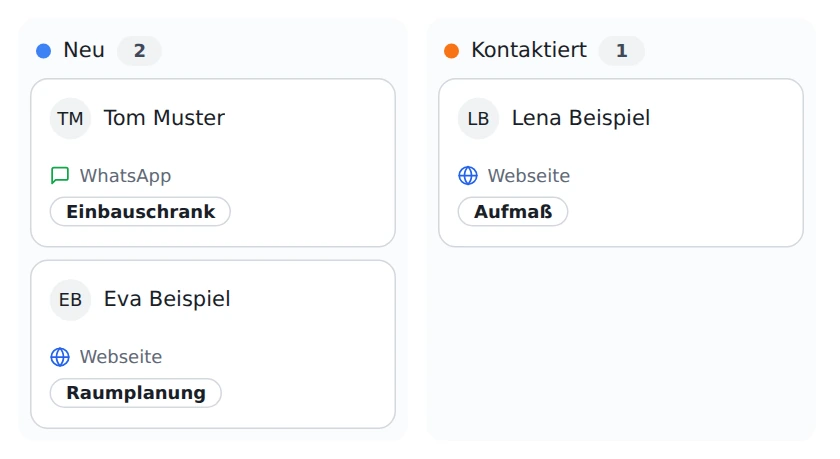
Lead board with sample inquiries for a trade business.
The sample shows the status of inquiries in the office. Daily site logs are kept in the construction area. German interface shown.

Frequently asked questions

Can I assign working hours to a job site?

Yes. The construction area records time by project. Use the demo to discuss how staff can select the correct project when they move to another job.

What is the daily site log for?

It records the status of work on a given day. Use it to hand work over between the site and the office when someone needs to know what’s already been done.

How can a customer confirm a time-and-materials report?

The team can provide a dedicated link to the report. The recipient can view it and submit confirmation through the process provided.

Can I capture inquiries before a project starts?

Yes. Use the CRM to determine the next step, schedule an appointment, and prepare a quote. Use the construction area for job site information.

What should we ask to see in the demo?

Bring a fictional example of extra work that needs coordination between the job site and the office. Use it to discuss time recording, the report, and confirmation.

Walk through a workflow from first contact to the site log.

Book a demo